Tutorial: Create a virtual app
Audience: OpenBuilt admins creating their first virtual app on a fresh install or alongside existing apps. Prereqs: OpenBuilt + OpenRegister installed and enabled. Signed in as a Nextcloud user (admin or otherwise). Outcome: A new virtual app named Test App with a
development → productionlinear version chain, both versions seeded with an empty register and the defaulthello-messageschema. Caller becomes the app's sole owner.
1. Open the wizard
Navigate to Virtual apps in the OpenBuilt sidebar and click Add application (the blue secondary button in the actions bar).
The wizard opens on Step 1 — App basics.
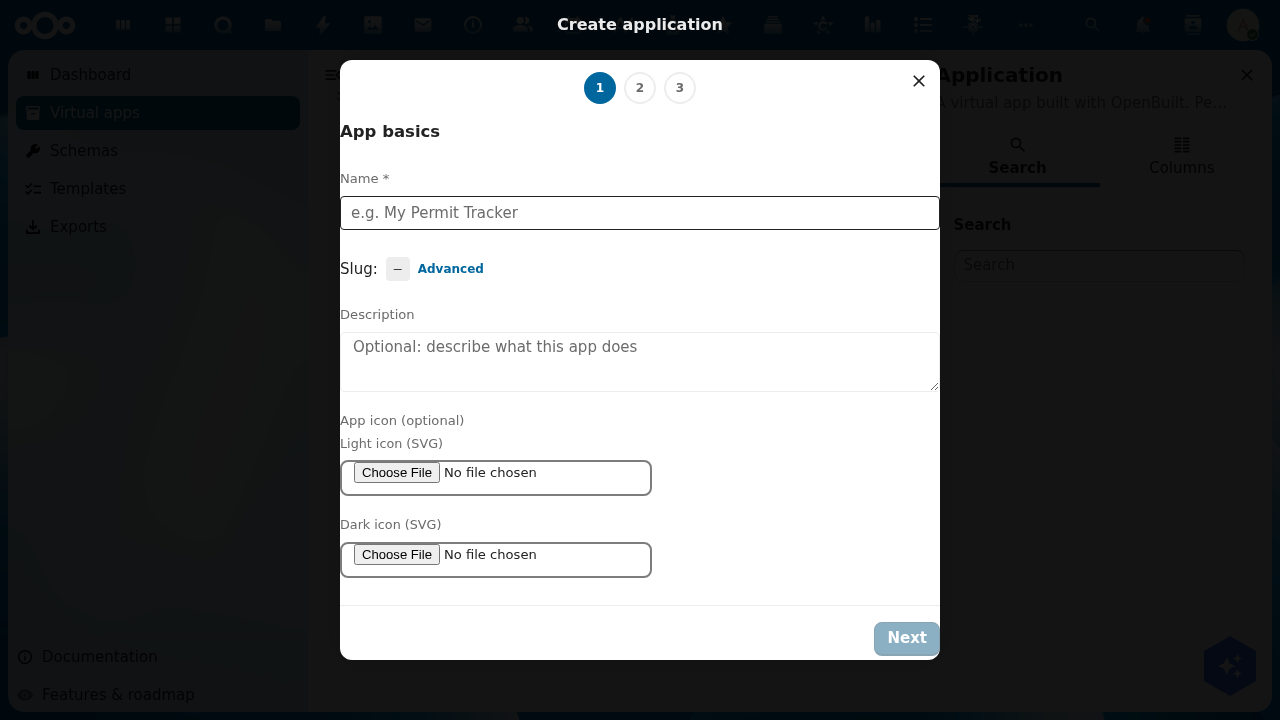
The dialog header shows a three-step indicator (1 → 2 → 3). Step 3 in this preset path is the Review screen; selecting the Custom preset later swaps in a chain composer as step 3 and pushes Review to step 4.
2. Step 1 — App basics
Fill in:
- Name (required) — the human-readable display label. e.g. Test App.
- Slug — auto-derived from the name in
kebab-case. Click the Advanced link if you want to override it manually (must match^(?!_)[a-z0-9][a-z0-9-]*[a-z0-9]$; leading underscores are reserved for openbuilt system use). - Description (optional) — long-form text describing what the app does.
- App icon (optional, both light + dark) — upload SVGs that will appear in the Nextcloud top bar once the app is published.
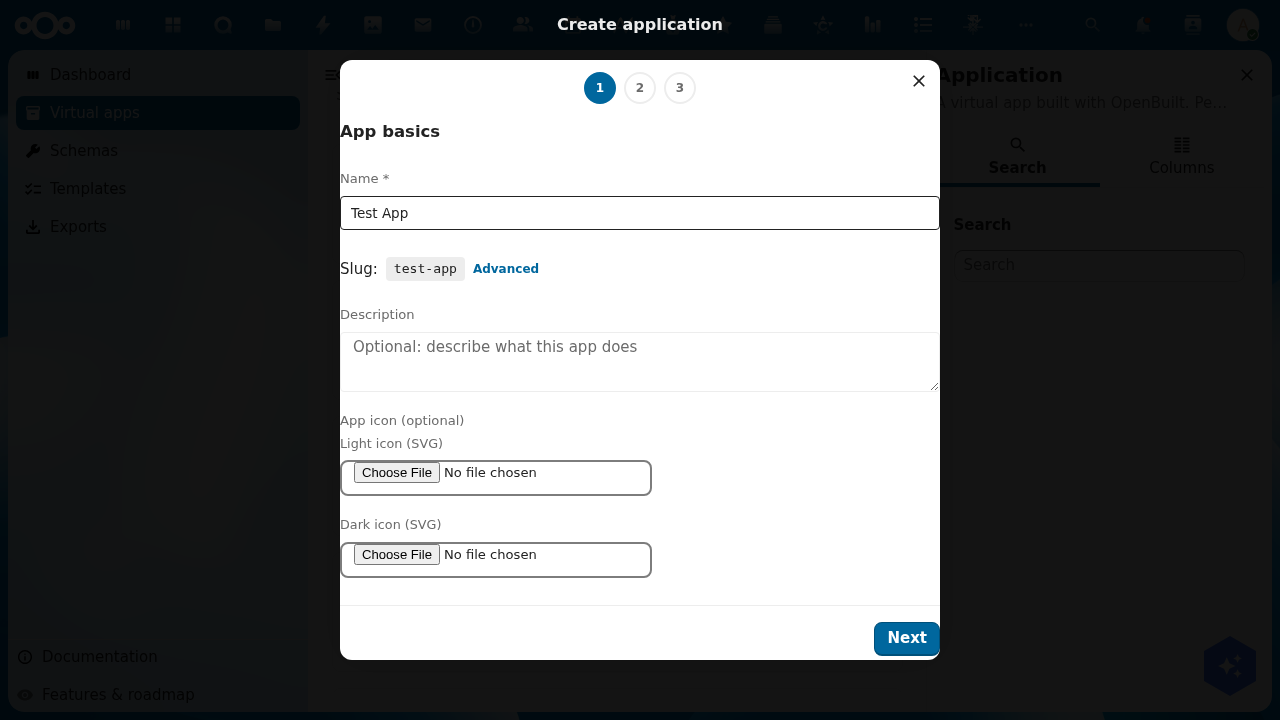
When Name is valid, the Next button in the footer enables.
3. Step 2 — Choose a version preset
Pick the shape of your version chain. ADR-002's linear-chain model uses these presets out of the box:
| Preset | Chain | Best for |
|---|---|---|
| Single | production | One-version apps with no staging environment. |
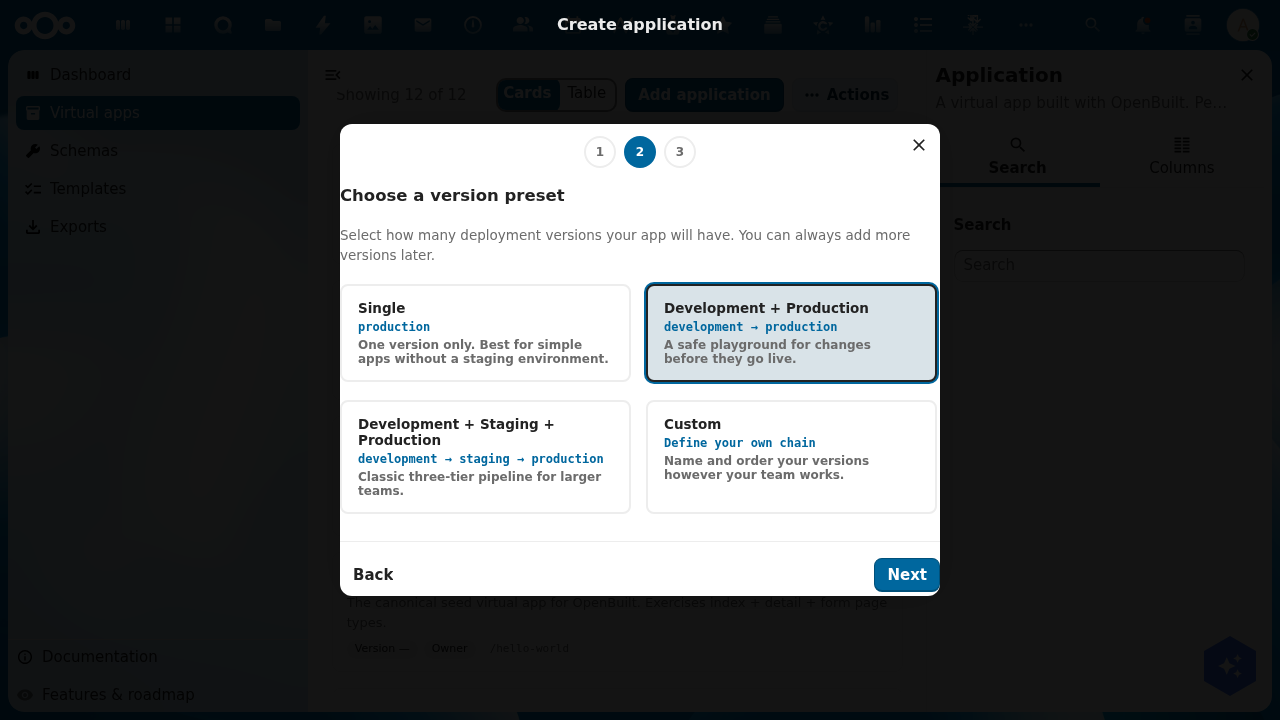
| Development + Production | development → production | The common "I want a safe playground" case. |
| Development + Staging + Production | development → staging → production | Classic three-tier pipeline for larger teams. |
| Custom | Admin-defined chain | When your team's deployment vocabulary doesn't fit the canned options. |
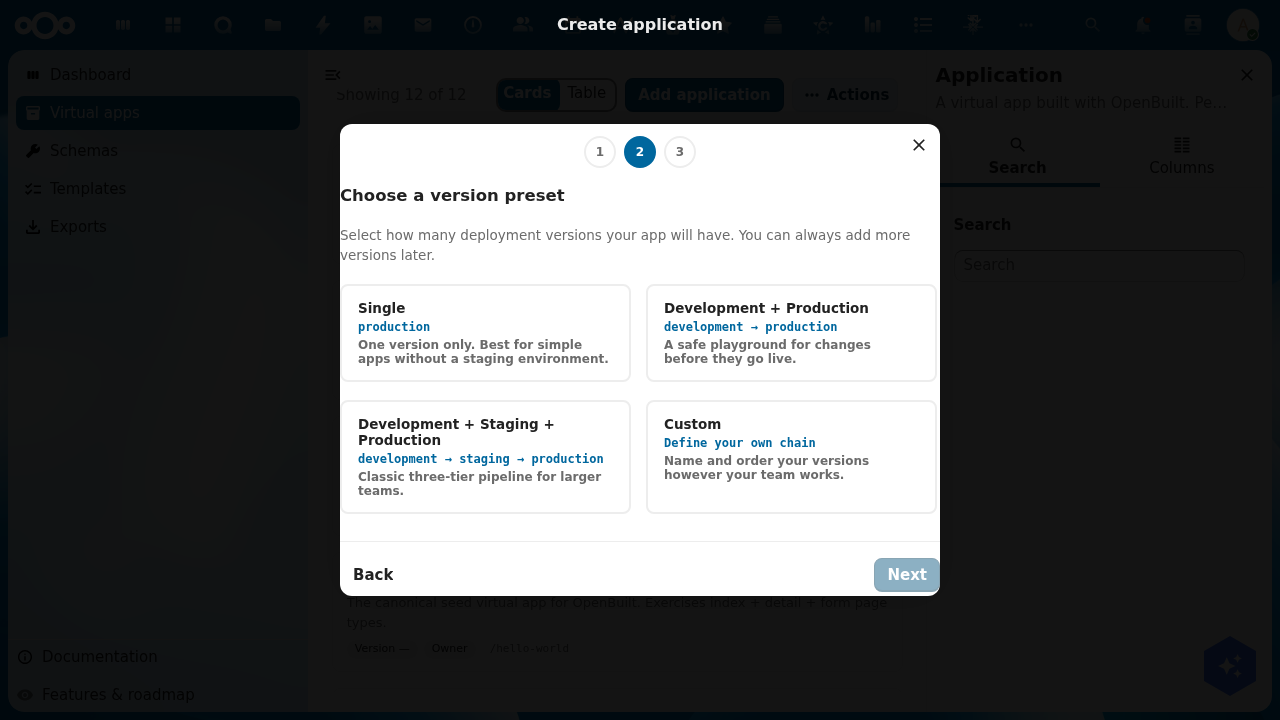
Selecting Custom swaps in step 3 with an add-row composer where you type each version's name and the slug auto-derives; rows are drag-reorderable; top-to-bottom is upstream-to-downstream.
For this tutorial we select Development + Production.
4. Step 3 — Review and create
The Review screen shows everything the wizard is about to provision:
- Name and slug from step 1.
- Version chain in arrow form (
development → production). - Production version callout naming which version end users will see at the canonical
/apps/openbuilt/{slug}URL.
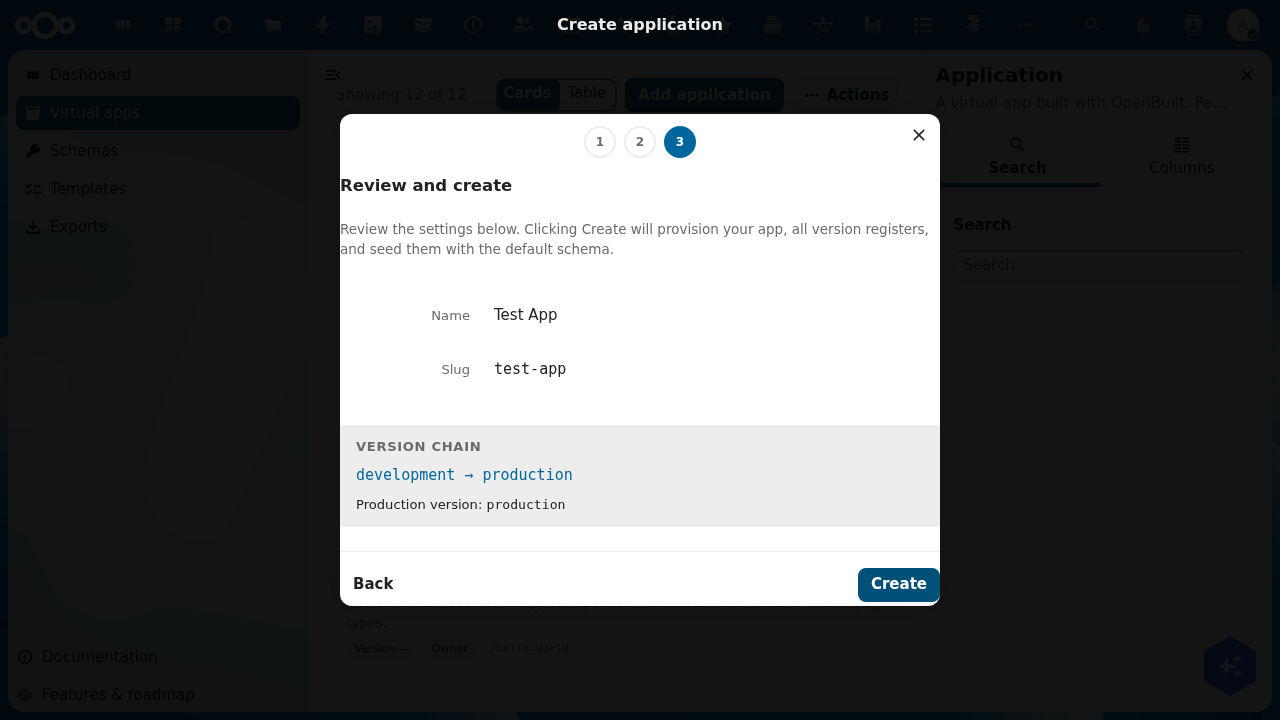
Click Create to submit. The backend then runs atomically:
- Validate the whole payload.
- Create the
Applicationrecord (caller becomesownersper RBAC). - For each version in chain order: create the
ApplicationVersionrecord + provision the per-version registeropenbuilt-{appSlug}-{versionSlug}+ install the default schema set with version-namespaced slugs. - Wire each non-terminal version's
promotesToto the next downstream version's UUID. - Set
Application.productionVersionto the terminal version's UUID.
On any failure, all already-created objects roll back in reverse creation order. On success, the wizard closes and you land on the new app's detail page at /apps/openbuilt/applications/<uuid>.
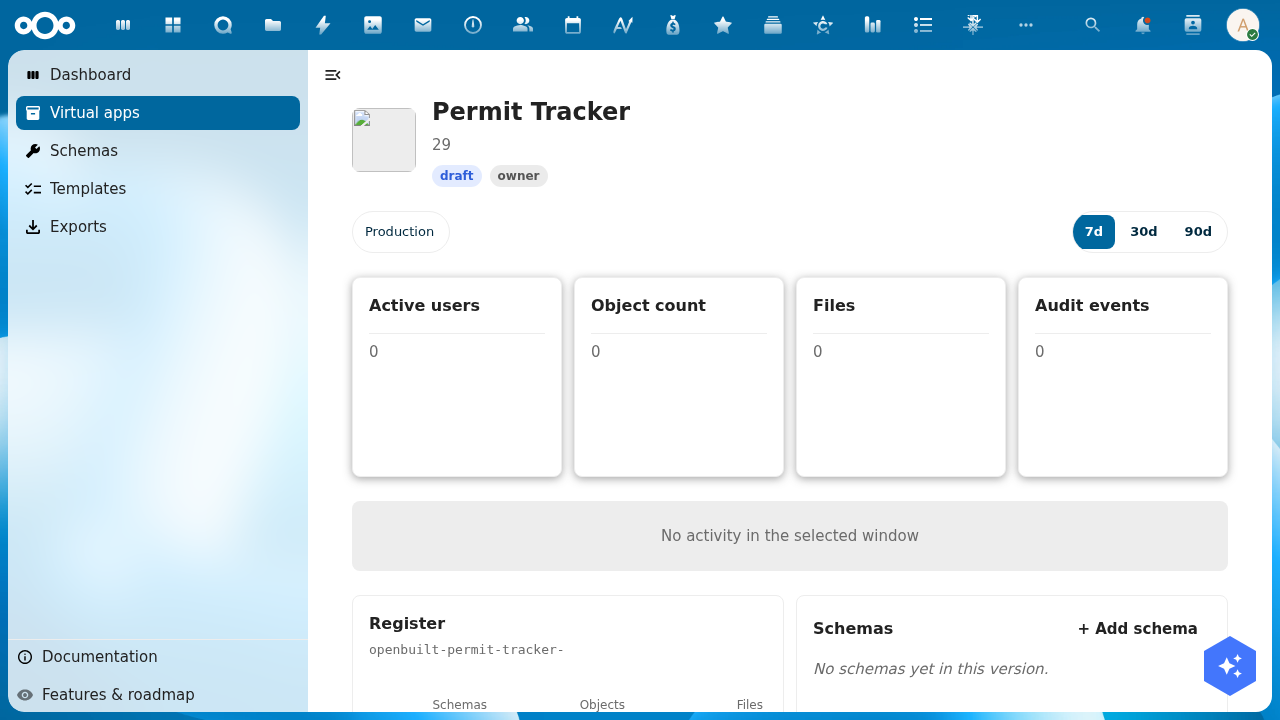
The detail page renders:
- The hero with status badge and window toggle (7d / 30d / 90d)
- Four KPI cards: Active users, Object count, Files, Audit events — all at 0 for a fresh app
- The activity placeholder ("No activity in the selected window") until the audit trail accumulates events
- The Register widget showing the production version's per-version OR register (
openbuilt-{appSlug}-production) withSchemas,Objects, andFilescounts - The Schemas widget listing the seeded
{appSlug}-production-hello-messageschema (or "No schemas yet in this version" until the wizard's schema seed runs) - The + Add schema affordance to start designing
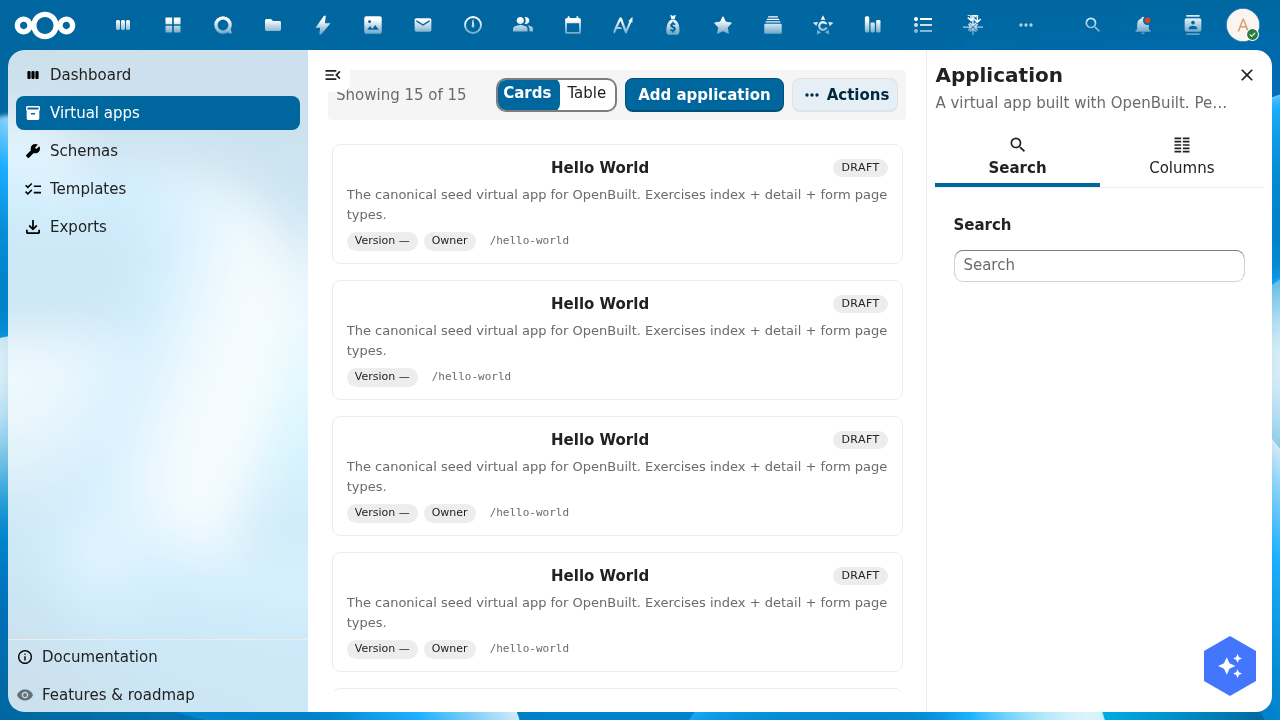
- Returning to Virtual apps confirms the new app appears in the index card grid:
5. What you have now
- One
Applicationrecord with your slug. - Two
ApplicationVersionrecords (development,production) chained linearly. - Two per-version OR registers (
openbuilt-test-app-development,openbuilt-test-app-production). - Each register seeded with the
hello-messageschema (namespaced astest-app-development-hello-messageandtest-app-production-hello-messageto satisfy OR's org-wide schema-slug uniqueness constraint).
What's next
- Schema design — open the version's schema designer at
/builder/{slug}/schemas?_version=developmentto model your domain. - Page design — open the page designer at
/builder/{slug}/pages?_version=developmentto lay out your app's screens. - Promote — when development looks ready, use the Promote action on the version detail page to push your changes through to production. The promote dialog asks how to handle the target's existing data (start fresh from source / migrate-with-schema-changes / empty-start).
Troubleshooting
- "Add Item" button instead of "Add application" — the manifest's
actionsComponentmust sit at page top-level (sibling toid/route/type/title), not nested insideconfig. The default CnIndexPage Add button is independent; suppress it withconfig.showAdd: falseif needed. [object Object]in OR API URLs — your local nc-vue version pre-dates the positional-arg fix inCnIndexPage.registerObjectType. Update nc-vue or copy the fix fromfeature/openbuilt-version-routing/ this branch.- Schema uniqueness violation on create — the org-wide schema-slug constraint requires per-app namespacing of seed schema slugs. The wizard applies
{appSlug}-{versionSlug}-as a prefix; if you fork the wizard's seed list, keep the namespacing pattern. - Hello World apps don't disappear after upgrade — the green-field migration step's idempotency check is too eager. See issue #69.
- Icons return 404 from
/apps/openbuilt/icons/{slug}.svg— see issue #68.